ChatGPT photo editing prompts turn a general AI assistant into a practical photo workflow partner. Instead of guessing which adjustments will improve a portrait, product shot, or landscape, you can ask ChatGPT for precise Lightroom settings, retouching steps, color grades, and masking advice. This guide gives you ready to use prompts for common editing scenarios and shows how to adapt them to your own photos.
How to Use ChatGPT for Photo Editing Workflows
ChatGPT does not directly replace Photoshop or Lightroom, but it can act as a planning and instruction layer. If you use a version that accepts image uploads, attach the photo before asking for a diagnosis. Otherwise describe the image type, lighting, camera settings, and the final look you want.
Useful context to include:
- Photo type, such as portrait, landscape, food, or product
- Lighting condition, such as golden hour, studio, overcast, or mixed indoor
- Camera settings if available, including ISO, aperture, shutter speed, and white balance
- Output platform, such as Instagram, portfolio, print, or online store
- Editing software, such as Lightroom, Photoshop, Capture One, or mobile apps
When ChatGPT gives a plan, treat it as a starting point. The best results come from back and forth dialogue.
25 Ready-to-Use ChatGPT Photo Editing Prompts
Below are prompts grouped by editing goal. Replace the bracketed details with your own photo information.
Color Grading and Mood Prompts
- Golden hour portrait grade: Act as a professional colorist. Create a Lightroom plan for a golden hour portrait with warm skin tones, soft highlights, and a slightly matte finish. Include white balance, exposure, tone curve, HSL, and calibration.
- Cinematic teal and orange: Give me a step by step DaVinci Resolve or Lightroom recipe for a cinematic teal and orange look on an evening street photo. Include color wheels, split toning, and contrast settings.
- Moody indoor edit: Suggest a Lightroom preset formula for a moody indoor photo with deep shadows, desaturated greens, and a cool overall tone. Provide specific HSL values and a tone curve.
- Pastel lifestyle grade: Write a mobile editing recipe for a soft pastel lifestyle photo. I want lifted shadows, reduced contrast, and airy skin tones. Give me Lightroom Mobile sliders and approximate values.
- Film inspired look: Describe a Photoshop and Lightroom workflow to make a digital photo look like Kodak Portra 400 film. Include grain, color shifts, highlight rolloff, and contrast adjustments.
Portrait Retouching Prompts
- Natural skin retouch: Act as a high end retoucher. Give me a non destructive Photoshop workflow for natural skin retouching that preserves texture. Include frequency separation steps, healing brush tips, and dodge and burn.
- Eye enhancement: Write a precise plan to brighten and sharpen eyes in a portrait without making them look unnatural. Include selection, mask, curve, and opacity settings.
- Teeth whitening: Provide a Photoshop tutorial for subtle teeth whitening. Include hue, saturation, lightness, mask feathering, and realistic limits.
- Studio headshot cleanup: Create a retouching checklist for a corporate headshot. I want clean skin, reduced flyaways, a smooth background, and a professional color grade.
- Selfie friendly edit: Suggest a Lightroom Mobile editing flow for a selfie that looks natural, reduces oily shine, and adds a soft glow without over smoothing.
Object and Background Cleanup Prompts
- Remove distractions: List the best Photoshop tools and workflow to remove power lines, trash, and small distractions from a landscape photo while keeping textures realistic.
- Background cleanup: Give me a step by step plan to declutter a busy background behind a portrait subject. Include selection, content aware fill, blur, and color adjustments.
- Product photo cleanup: Act as a product photo editor. Describe how to remove dust, scratches, and uneven reflections from a watch product photo without losing metallic detail.
- Skin blemish removal: Explain a precise Lightroom and Photoshop method to remove blemishes while preserving pores and natural skin texture.
Landscape and Architecture Prompts
- Dramatic sky enhancement: Write a Lightroom plan to make a cloudy sky more dramatic without introducing halos. Include gradient masks, dehaze, clarity, and color adjustments.
- Real estate interior edit: Act as a real estate photo editor. Give a step by step recipe for a bright, natural looking interior photo with corrected white balance, vertical lines, and balanced window light.
- Cityscape at night: Provide a Lightroom workflow for a night cityscape with controlled highlights, reduced noise, and subtle blue shadows.
- Snow scene correction: Explain how to correct a winter photo that looks gray and blue. Include white balance, exposure, and selective color adjustments.
Black and White Conversion Prompts
- High contrast black and white portrait: Describe a Photoshop black and white conversion for a studio portrait using channel mixer or black and white adjustment layer. Include contrast, grain, and selective dodging.
- Fine art landscape monochrome: Create a fine art black and white workflow for a misty forest photo. Include tonal zones, clarity, and print ready contrast.
- Street photography black and white: Give me a Lightroom recipe for a high impact black and white street photo with deep blacks, controlled highlights, and a slight film grain.
Social Media and Product Prompts
- Instagram food photo: Write a Lightroom Mobile plan for an Instagram food photo that looks fresh, bright, and appetizing. Include white balance, vibrance, sharpening, and export settings.
- Online store apparel: Act as an e commerce photo editor. Explain how to make a clothing product photo look clean, bright, and color accurate for an online store.
- Car photo edit: Provide a photo editing plan for an automotive shot with glossy paint, controlled reflections, and a dramatic background.
- Travel photo consistency: Create a preset recipe I can use across a travel photo set to make the colors consistent. Include tone curve, HSL, split toning, and a naming convention.
How to Adapt These ChatGPT Prompts
Each prompt becomes more useful when you replace generic terms with your actual image details. Instead of saying portrait, say a close up portrait of a woman with dark hair, taken by a window on an overcast day. Instead of saying product photo, say a ceramic mug on a white surface with soft shadows. The more context you add, the more precise the suggested settings will be.
After ChatGPT returns a plan, ask follow up questions. For example, you can ask which adjustment should be done first, what strength setting might look natural, or how the plan changes if the photo is printed instead of posted online.
Common Mistakes That Weaken ChatGPT Photo Editing Responses
- Too little context: A prompt like edit my photo gives ChatGPT almost nothing to work with. Always describe the subject, lighting, and intended style.
- Expecting ChatGPT to edit the file directly: ChatGPT can describe and plan edits, but it does not apply pixel changes in most standard workflows. Use the output inside Photoshop, Lightroom, or an AI photo editor.
- Ignoring output format: Tell ChatGPT whether you need sliders, menu steps, a preset file, or a checklist. This changes how the response is structured.
- Using one prompt for every image: Different subjects need different edits. A portrait prompt will not work well for a landscape or a product shot.
From Prompt Plan to Finished Photo with zikzik
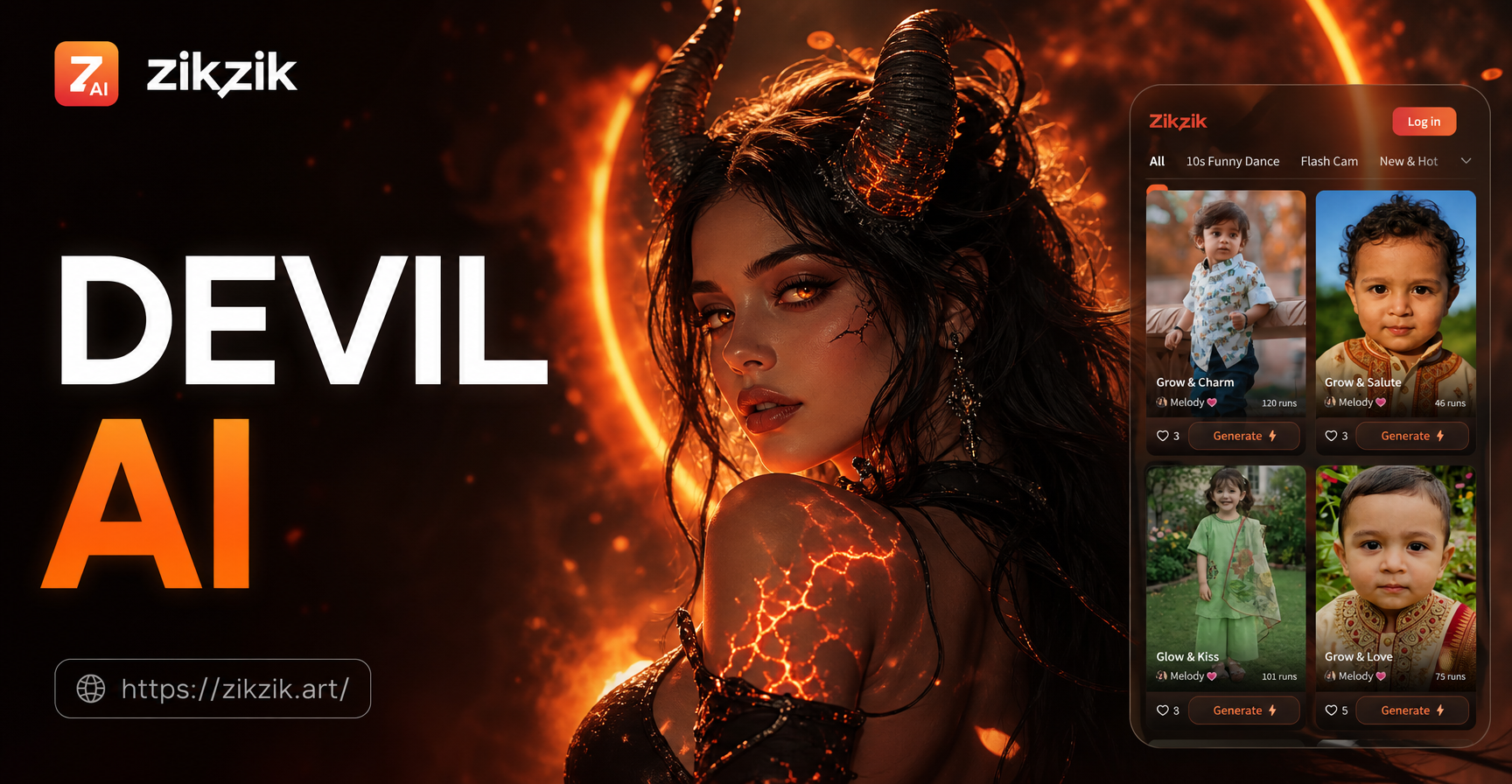
If you want to apply a visual style or transformation after ChatGPT helps you plan, zikzik can handle the actual image generation and image to image edits. Open the zikzik app, upload your photo, and choose a style or edit filter that matches the look you described. Because zikzik is built for mobile use, you can test a teal and orange grade, a soft pastel portrait, or a cinematic scene without manually adjusting every slider.
Use your ChatGPT prompt as a style brief. For example, if ChatGPT suggests a warm golden hour grade, look for a warm portrait filter in zikzik and generate a preview. Then compare the result and refine the prompt or filter choice.
Quick Prompt Formula
Use this structure when you need a custom prompt: You are a [type of editor]. Help me edit a [photo type] with [lighting or condition]. I want [desired style or final look]. Provide [specific output, such as Lightroom sliders, Photoshop steps, or a mobile recipe].
Example: You are a portrait retoucher. Help me edit a close up portrait taken in soft window light. I want natural skin, brighter eyes, and a warm neutral background. Provide Lightroom Mobile sliders and a short retouching checklist.
Frequently Asked Questions About ChatGPT Photo Editing Prompts
Can ChatGPT directly edit my photos? In most standard interfaces, ChatGPT cannot directly change image pixels. It can analyze an uploaded image, describe adjustments, and provide step by step editing plans for software such as Photoshop, Lightroom, or mobile apps.
Do I need the paid version of ChatGPT to use photo prompts? Basic text prompts work in the free version. Image upload and visual analysis may require a plan that supports file uploads or vision features, so check your current ChatGPT plan.
How many details should I include in a prompt? Include at least the photo type, subject, lighting, and final style. For more precise settings, add camera details, output platform, and the software you plan to use.
Can I use these prompts with other AI tools? Yes. The prompts describe editing intentions and workflows. You can use them to guide Adobe Lightroom, Photoshop, Capture One, or image to image tools like zikzik.
Conclusion
ChatGPT photo editing prompts give you a repeatable way to plan color grades, retouching steps, and cleanup workflows. The key is to be specific, describe the photo, and ask for the exact output format you want. Keep this list as a starting point, adapt the bracketed details, and pair the prompt plan with zikzik when you want to generate a finished visual on your phone.