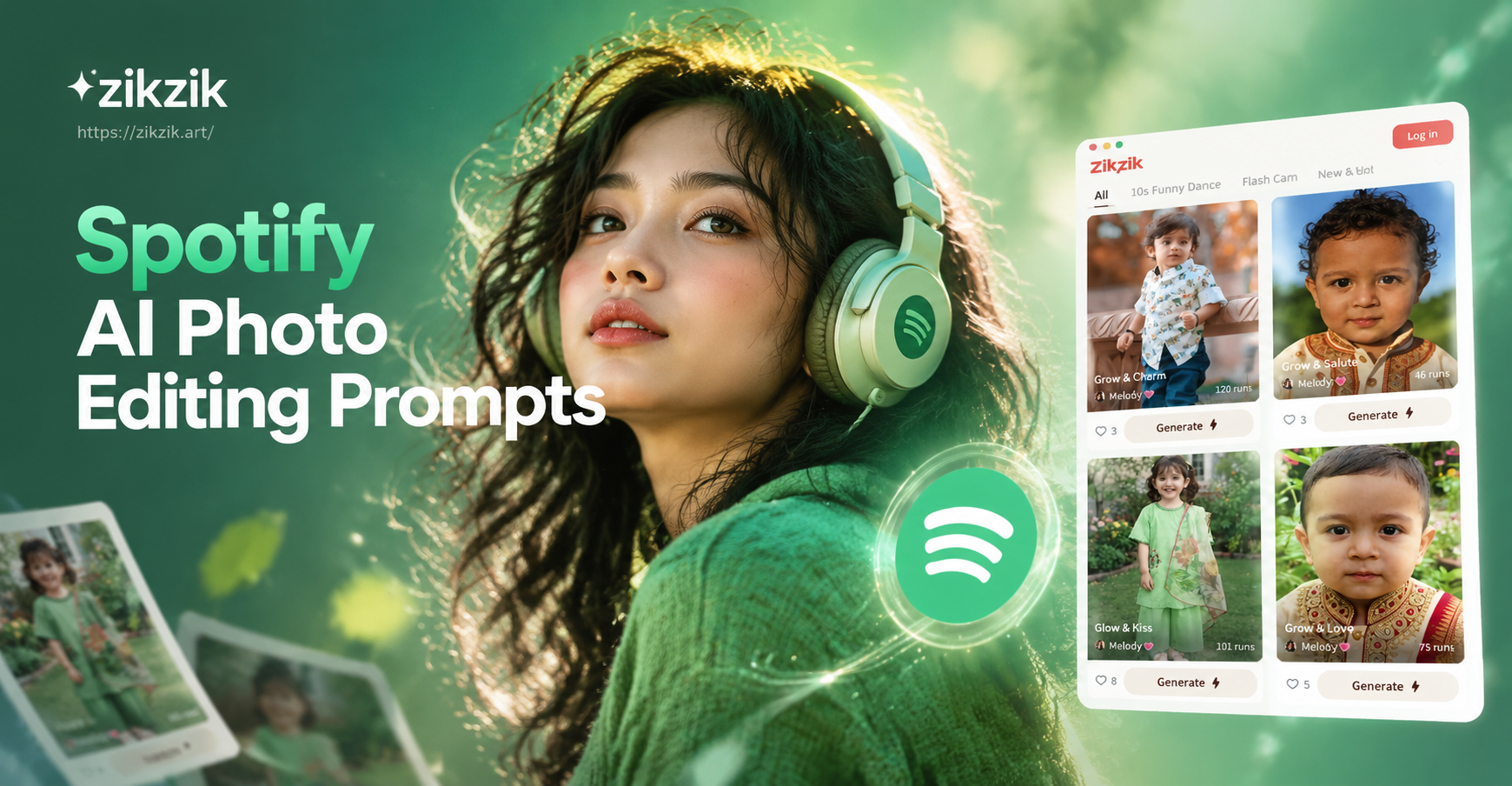
What Are Spotify AI Photo Editing Prompts?
Spotify AI photo editing prompts are text instructions that tell an AI image editor how to transform a photo into a Spotify inspired visual. These prompts help you create album covers, playlist banners, artist portraits, and music themed edits without expensive design software. Instead of manually adjusting colors and layers, you describe the look you want. The AI handles the rest.
Think of the signature Spotify look: a bold green background, clean white text, high contrast portraits, and a mood that shifts from intimate bedroom acoustics to neon festival stages. A good prompt names those details clearly. It tells the AI what color to use, what style to apply, what mood to create, and what composition to keep.
What Makes a Strong Spotify AI Photo Prompt?
Before you copy a prompt, it helps to understand the ingredients. A clear Spotify style prompt usually includes five parts.
- Subject: the person, object, or scene you want to feature.
- Color palette: Spotify green (#1DB954), black, white, electric blue, or warm amber.
- Mood: nostalgic, energetic, moody, romantic, or celebratory.
- Style: duotone, retro vinyl, polaroid, cinematic, editorial, or glitch.
- Composition and lighting: square album cover, portrait, side profile, neon rim light, soft window light, stage spotlight.
For image to image edits, add "keep the original face and pose" or "preserve the subject's identity" to the prompt. This helps zikzik keep the person recognizable while changing the background, colors, and overall vibe.
30 Spotify AI Photo Editing Prompts You Can Use Today
These prompts are designed for zikzik's image to image editing. Upload a photo, paste one prompt, pick a style filter, and generate. You can swap any details to match your own photo.
Album Cover and Portrait Prompts
- Edit this portrait into a Spotify album cover. Use a deep emerald green background, soft studio lighting, and a clean white sans serif title in the top left. Add subtle film grain and keep the face sharp.
- Turn this photo into a moody indie album cover. Desaturate the colors, add a dark forest green backdrop, and place the subject in the lower right third. Use a vintage film camera look with soft halation.
- Transform this image into a bold pop album cover. Change the background to electric green, add high contrast black shadows, and give the subject a confident expression. Use a 1:1 square crop.
- Create a Spotify style artist portrait. Add a subtle green duotone over the shadows and keep the highlights white. Use a clean black background and a soft spotlight from above.
- Edit this photo into a jazz album cover. Add a warm amber tone, soft window light from the left, and a vinyl record texture in the background. Keep the subject in the center.
Playlist Cover and Music Mood Prompts
- Turn this portrait into a late night playlist cover. Use a black background, a single green neon tube light behind the subject, and a relaxed expression. Add a subtle smoke effect.
- Make this photo look like a study music playlist cover. Use a calm sage green palette, soft natural window light, and place a pair of headphones around the subject's neck. Keep the image clean and minimal.
- Edit this image into a road trip playlist cover. Add a warm sunset glow, a slight motion blur on the edges, and a green stripe across the bottom. Use a cinematic landscape crop.
- Transform this photo into an upbeat gym playlist cover. Use high contrast red and black with a green accent border. Add a punchy, energetic pose and sharp details.
- Create a cozy coffeehouse playlist cover. Use a warm beige background, soft bokeh fairy lights, and a steaming mug in the foreground. Keep the subject smiling naturally.
Retro Vinyl and Cassette Prompts
- Edit this portrait into a retro vinyl album cover. Add a circular vinyl record behind the subject, use a warm sepia tone, and place the name in a retro serif font at the bottom.
- Turn this photo into a 1980s cassette tape aesthetic. Use a grainy pink and turquoise color palette, a slight VHS scan line effect, and rectangular cassette labels in the corner.
- Transform this image into a vintage record store photo. Add shelves of vinyl in the background, warm tungsten lighting, and a slightly faded film look.
- Create a classic rock album cover style. Use a black and white photo with a single green accent stripe. Add a leather jacket and softened shadows for drama.
- Edit this photo into a retro soul album cover. Use warm orange and dark brown tones, a soft spotlight, and a grainy 1970s film texture.
Concert and Stage Light Prompts
- Turn this photo into a live concert shot. Add a dark stage background, green and white spotlights from behind, and a slightly lifted mic stand in front. Use motion blur on the crowd.
- Edit this portrait into a festival stage photo. Add a wide angle view, green laser beams, and a smoke filled air. Keep the subject's face sharp and colorful.
- Transform this image into an intimate acoustic set. Use warm amber stage lighting, a dark audience silhouette, and soft bokeh lights in the background.
- Create a main stage pop performance edit. Add a glowing green LED wall behind the subject, sharp rim light, and a confident stage pose.
- Edit this photo into a late night club show. Use neon purple and green lighting, a shallow depth of field, and a slight haze in the air.
Editorial Music Portrait Prompts
- Turn this portrait into a music magazine cover. Add a bold green masthead at the top, clean white sans serif text, and a high fashion expression. Use a studio lighting setup.
- Edit this photo into a duotone editorial portrait. Replace all midtones with Spotify green and all highlights with white. Keep the subject's eyes sharp.
- Transform this image into a backstage documentary shot. Add a black and white filter with a subtle green tint in the shadows. Include a mirror reflection for depth.
- Create an artist press photo. Use a plain gray background, a single soft key light, and a relaxed, approachable pose. Add a thin green border.
- Edit this photo into a music video still. Add a cinematic 2.35:1 crop, teal and orange color grade, and a dramatic side profile pose.
Spotify Wrapped and Year in Review Style Prompts
- Turn this photo into a Spotify Wrapped style share card. Use a vibrant green gradient background, clean white statistics text on the right, and the subject on the left. Add a playful smile.
- Edit this portrait into a Year in Review graphic. Use a black background, bright green and pink graphic shapes, and bold white headline text. Keep the subject centered.
- Transform this image into a Top Artist badge. Use a circular frame, a dark green background, and the subject's face in the center. Add a small white play button icon.
- Create a Spotify Unwrapped style edit. Use a pastel green and cream palette, soft 3D render shapes, and a cheerful pose.
- Edit this photo into a music stats card. Add a green bar chart overlay on the left, the subject on the right, and a clean sans serif font throughout.
Typographic and Graphic Overlay Prompts
- Edit this portrait into a minimal Spotify style track cover. Add a clean white circular play button in the center, a soft green gradient background, and no other text.
- Turn this photo into a lyric quote edit. Add a black semi transparent overlay, white sans serif lyrics on the right side, and a green highlight on one key word.
- Transform this image into a podcast cover. Use a split layout with the subject on the right and a bold green title on the left. Add a simple microphone icon.
- Create a music festival poster edit. Add a vintage paper texture, bold green and black typography, and the subject in the center wearing a festival outfit.
- Edit this photo into a New Music Friday style card. Use a dark background, a green diagonal stripe, and the subject emerging from the bottom edge.
How to Use These Prompts in zikzik
zikzik is a free AI design app for Android. It combines text to image, image to image, and style filters in one place. To use any prompt above:
- Download zikzik from Google Play.
- Open the app and choose Image to Image.
- Upload the photo you want to edit.
- Paste one of the prompts into the text field.
- Pick a style filter that matches the prompt, such as cinematic, retro, or duotone.
- Generate, save, and share your edit.
The app includes more than a million style filters, so a single prompt can produce many different looks. If the first result feels too soft, try the same prompt with a different filter or increase the style strength.
How to Fix Weak or Generic Results
If your edit comes out looking generic, the prompt probably lacks one key detail. Here are the most common fixes.
Add a Specific Color Code
Instead of "green background," write "Spotify green #1DB954 background." Instead of "dark," write "deep black with a soft green rim light." The more exact the color, the less the AI guesses.
Name the Composition
Say "square 1:1 album cover," "2.35:1 cinematic crop," or "subject in the left third." AI editors respond well to composition cues.
Preserve the Original Face
For image to image edits, always include "keep the subject's face and pose recognizable" if you want a portrait to stay one specific person. Without that, the AI may replace the person.
Mention Lighting and Mood
Words like "soft window light," "neon rim light," "stage spotlight," or "grainy film look" do more work than broad words like "cool" or "nice."
Try a Second Style Filter
Sometimes a prompt is correct but the filter overpowers it. In zikzik, switch from a heavy anime filter to a realistic photography filter, then adjust the intensity.
Frequently Asked Questions
Can I use these Spotify AI photo editing prompts on any photo?
Yes. The prompts work best on clear, well lit portraits, but you can apply them to product shots, pet photos, or travel images. You may need to adjust the subject words to match what is in your photo.
Do I need to be a designer to get Spotify style edits?
No. The prompts are written in plain English. You upload a photo, copy a prompt, and let the AI do the color, background, and lighting work. zikzik does not require any design skills.
What if the AI ignores the green color?
Add the exact hex code #1DB954 to your prompt and place the color request near the beginning. You can also try a green duotone or retro filter inside the app before generating.
Spotify AI photo editing prompts turn a simple portrait into a shareable music visual in minutes. Start with one prompt that matches your photo, adjust the color or composition details, and experiment with style filters until the edit feels right. Download zikzik, upload your photo, and turn your camera roll into a set of Spotify inspired covers today.