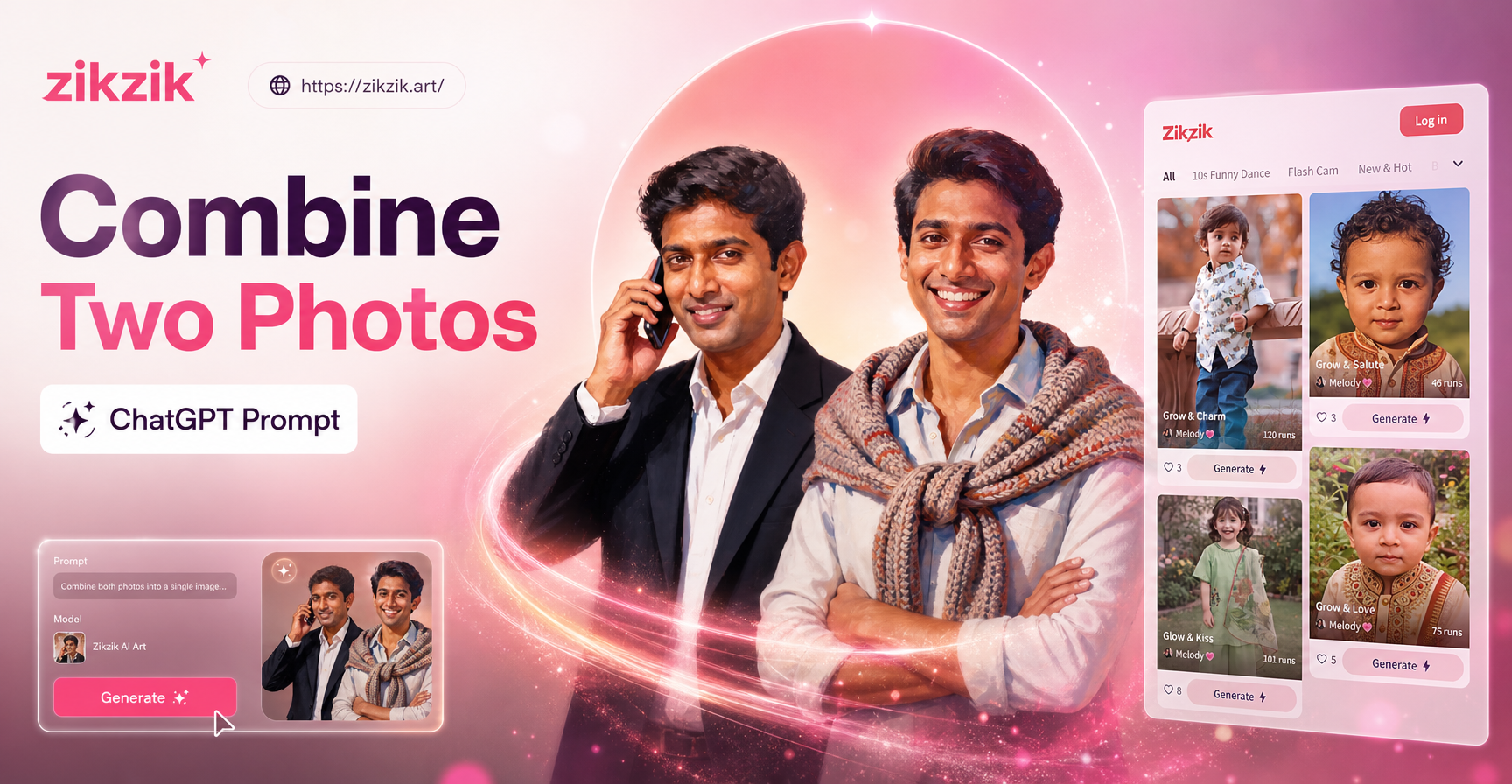
Why the Right Prompt Matters When Combining Two Photos in ChatGPT
ChatGPT can accept two uploaded images and create a new composite based on your instructions. However, it does not work like a traditional photo editor that cuts and pastes pixels. Instead, the model interprets what it sees and redraws the final image. That means the photos you upload are references, not fixed layers. A vague request like combine these two photos usually produces an unpredictable result because the model has to guess what to keep, what to remove, and how to blend the images.
This guide focuses on the ChatGPT combine two photos prompt. You will find ready to use prompts for realistic composites, face merges, background swaps, product shots, and double exposure effects. You will also learn how to adjust weak results so you can turn an average edit into a polished image.
How ChatGPT Processes Two Uploaded Photos
When you upload two photos to ChatGPT, you can refer to them as the first photo and the second photo. Some versions of ChatGPT label them as an image file or uploaded image. You do not need to use file names unless the interface shows them. A reliable structure looks like this: tell ChatGPT which photo is the source, which photo is the target, what to keep from each, where to place the subject, and the final style.
For example, you might say, Take the person from the first photo and place them into the room shown in the second photo. That one sentence already tells the model the source, the target, and the action. Then you add matching details such as light, shadow, camera angle, and color tone. The more specific you are, the better the composite will look.
12 ChatGPT Combine Two Photos Prompts That Work
Copy any prompt below and replace the descriptions with your own photos. Each one follows a clear structure so you can use it as a template.
- Person into a new background. Take the person from the first photo and place them into the scene shown in the second photo. Keep the person's face, hair, clothing, and pose exactly the same. Match the lighting, shadows, camera angle, and color temperature of the second photo. The person should look like they were originally in that scene. Do not crop or stretch the subject. Make the result photorealistic.
- Face merge into one portrait. Combine the facial features from the first photo and the second photo into a single natural portrait. Keep the overall face shape of the first person but use the eye shape and mouth from the second person. Blend the skin texture naturally. The final image should look like a real photograph, not a painting or cartoon.
- Side by side product shot. Take the product from the first photo and the product from the second photo. Place them side by side on a clean light gray background. Keep both products at the same scale and height. Match the lighting direction and add soft shadows under each product. Do not alter product colors, labels, or text.
- Add an object to a room. Take the dog from the first photo and add it to the sofa shown in the second photo. Keep the dog's size, fur color, and pose the same. Match the indoor lighting and shadow direction. The dog should sit naturally on the sofa without looking pasted or floating.
- Merge two group photos. Combine the people from the first photo and the people from the second photo into one group portrait. Arrange everyone in a single row. Keep each person's face, clothing, and proportions accurate. Use a soft neutral studio background. Match every person to the same lighting and skin tone. The result should look like one professional family photo.
- Double exposure with texture. Use the portrait from the first photo and the floral texture from the second photo. Create a double exposure effect where the flowers appear inside the person's face and shoulders. Keep the facial features clearly visible. Use soft blended edges and avoid hard cutouts.
- Before and after collage. Create a side by side comparison using the first photo on the left and the second photo on the right. Keep the original framing, colors, and resolution. Add a thin white divider between the two images. Do not crop, stretch, or change either photo.
- Person in a landscape. Place the person from the first photo into the mountain landscape from the second photo. Position the person in the lower third of the frame. Match the outdoor lighting and color grading. Add a natural shadow on the ground. Keep the person sharp while the background stays slightly soft.
- Two pets together. Take the cat from the first photo and the dog from the second photo. Put them together on a cozy living room rug. Keep their fur texture, size ratio, and expressions natural. Make them sit close to each other. Use warm indoor lighting and realistic shadows.
- Silhouette double exposure. Combine the silhouette from the first photo with the city skyline from the second photo. Use a black and white double exposure style. The city details should appear inside the silhouette. Keep high contrast and clean edges. Remove any extra objects from the background.
- Face onto a different body. Keep the face from the first photo and attach it to the body in the second photo. Match the skin tone, neck alignment, and shoulder width. Keep the face at the same angle as the head in the second photo. The final image should look like one natural portrait with no visible seams.
- Flat lay food scene. Take the dish from the first photo and the drink from the second photo. Create one flat lay food scene on a wooden table. Arrange the dish and the drink together with matching props. Use natural daylight from the left. Keep the original food colors and textures accurate.
How to Write a Strong ChatGPT Combine Two Photos Prompt
Use a simple five part structure to make your request clearer.
- Name the source. Say which photo contains the main subject.
- Name the target. Say which photo contains the background or second subject.
- State what to keep. List face, hair, clothing, pose, or product details that must stay unchanged.
- Define the placement. Use words like left, right, center, lower third, side by side, or behind.
- Describe the finish. Add lighting, shadow, color tone, and style words such as photorealistic, cinematic, soft light, or double exposure.
You can also add negative instructions at the end, such as Do not change the face or Do not add extra people. Negative instructions work well when the first result includes unwanted changes.
How to Fix Common Weak Results
- The face looks different. Run the prompt again and add Keep the exact facial features, skin texture, and expression from the first photo.
- The proportions are off. Add Keep the subject at the same scale and body proportions. Do not stretch or widen the person.
- The lighting does not match. Add Match the highlight direction, shadow softness, and warm or cool color tone of the second photo.
- The subject looks pasted. Add Blend the edges naturally and add contact shadows so the subject sits in the scene.
- The wrong person appeared. Use order labels such as person on the left in the first photo or upload photos separately if the interface allows.
When a Prompt Alone Is Not Enough
ChatGPT is useful for quick composites, but it can struggle with complex multi person scenes, exact product labels, or high resolution source images. For those cases, a dedicated AI image app can save time. zikzik is a mobile AI design tool that combines image to image editing with multi person photo processing. You can upload source photos, select a style filter, and generate a merged image without writing long prompts. This workflow is helpful when you need consistent results on a phone or want to try many visual styles quickly.
That said, the prompts in this guide remain useful even inside an app. You can often enter a shorter version of a ChatGPT combine two photos prompt as a style or content reference. The key rules stay the same: keep the subject clear, describe the target background, and specify the final look.
Quick Answers to Common Questions
Can ChatGPT combine two photos into one image?
Yes, you can upload two photos to ChatGPT and ask it to merge them. The result depends on the prompt. Be clear about which photo is the source and which is the target.
Do I need ChatGPT Plus to combine photos?
Image upload and image generation are available in certain ChatGPT plans and versions. If the image upload option does not appear, your current version or plan may not support it. Check the current ChatGPT features before starting.
Why does my combined photo look fake?
Usually the lighting, shadow, or scale does not match. Run the prompt again with instructions to match the second photo's lighting, add contact shadows, and keep the subject's proportions accurate.
Can I use these prompts with another AI tool?
Yes. Most generative image tools understand the same structure: source, target, keep, placement, and finish. You can shorten the prompts for mobile apps such as zikzik.
Start Combining Photos with More Control
The best ChatGPT combine two photos prompt is the one that removes guesswork. Instead of saying merge these, tell the model exactly what to keep and where to place it. Use the examples above as templates and adjust them for portraits, products, pets, or creative double exposures. If you want faster mobile results with preset filters, download zikzik from Google Play and try its image to image and multi person tools.
Practice two or three prompts with the same photos and compare the output. Small changes such as adding photorealistic or match the lighting often make a big difference.